
What is Unity and Why Should You Use Unity for Game Development?
Unity is a powerful cross-platform game development engine developed by Unity Technologies that has revolutionized the way developers create interactive content. Unity game engine supports both 2D and 3D game development, making it the preferred choice for indie developers, AAA studios, and educational institutions worldwide. The Unity platform enables developers to build games for multiple platforms including Windows, Mac, Linux, iOS, Android, PlayStation, Xbox, Nintendo Switch, and web browsers using a single codebase.
The primary reasons to choose Unity for game development include its user-friendly interface, extensive Asset Store marketplace, robust physics engine, visual scripting tools, and comprehensive documentation. Unity’s real-time rendering capabilities, combined with its flexible workflow, make it ideal for creating everything from simple mobile games to complex virtual reality experiences and augmented reality applications.
Unity Hub – The Modern Unity Version Management System
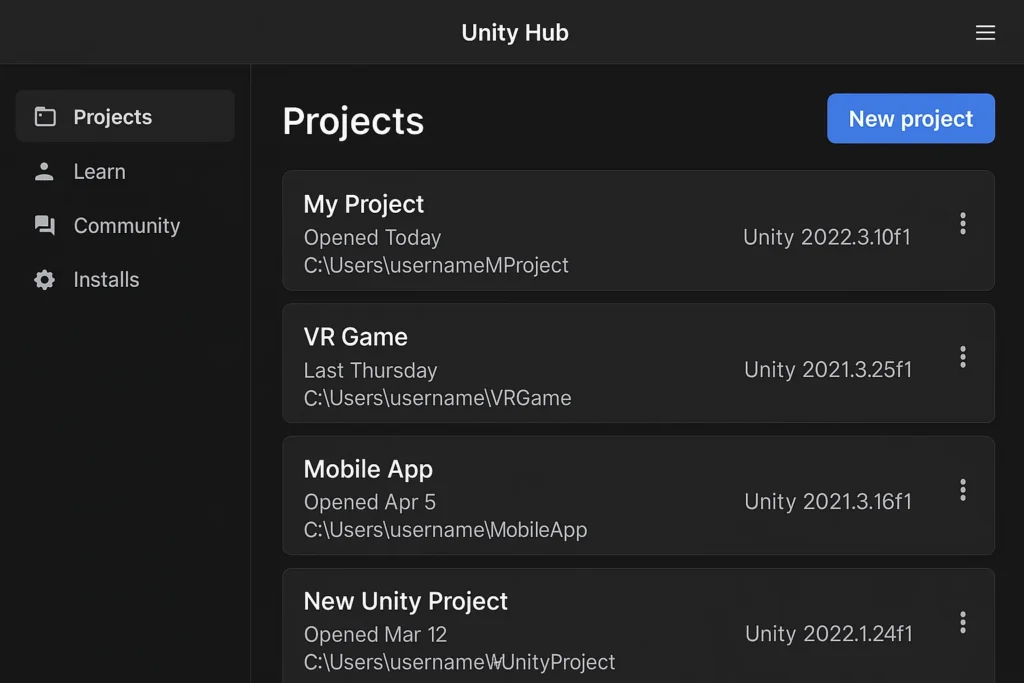
Unity Hub represents a significant advancement in Unity version management and project organization. This centralized launcher application allows developers to manage multiple Unity versions simultaneously, organize projects efficiently, and streamline the development workflow. Unity Hub eliminated the previous cumbersome process of managing separate Unity installations and provided a unified interface for all Unity-related activities.
Key Benefits of Unity Hub for Game Developers
Unity Hub offers numerous advantages for both beginner and experienced game developers. The centralized version management system allows you to install Unity 2018, Unity 2019, Unity 2020, Unity 2021, Unity 2022, and future releases side by side. This multi-version support is crucial when working on different projects that require specific Unity versions for compatibility reasons.
The project management features in Unity Hub enable developers to organize their game development projects efficiently, view recent projects at a glance, and launch specific projects with their corresponding Unity versions. Additionally, Unity Hub provides automatic update notifications, license management tools, and easy access to Unity learning resources and documentation.
Step-by-Step Unity Hub Download and Installation Process
Initial Unity Hub Download Setup
To begin your Unity game development journey, open your preferred web browser and search for “get Unity download” or navigate directly to unity.com. On the Unity download page, you’ll find the prominent green button labeled “Choose your Unity + Download.” However, the modern recommended approach is to download Unity Hub first, as it provides superior version management capabilities.
Look for the “Download Unity Hub” option on the download page. Unity Hub download is typically a small file (approximately 20-30 MB) that serves as the installer for the main Unity Hub application. The Unity Hub installer supports both Windows PC and Mac operating systems, with slight variations in the installation process depending on your operating system.
Unity Hub Installation Wizard and Setup
Once the Unity Hub installer download is complete, locate the downloaded file in your downloads folder and execute it. On Windows systems, you may encounter a User Account Control prompt asking for permission to make changes to your device – click “Yes” to proceed. Mac users will see similar security prompts that should be approved to continue the installation.
The Unity Hub installation wizard will present you with the End User License Agreement (EULA). While it’s tempting to quickly scroll through and click “I Agree,” it’s recommended to review the terms, especially if you’re planning commercial game development. The EULA covers important aspects of Unity usage rights, distribution permissions, and commercial licensing terms.
After accepting the license agreement, Unity Hub will perform background installation tasks. This process typically takes a few minutes, depending on your system specifications and internet connection speed. Once installation is complete, Unity Hub will launch automatically, presenting you with a clean, modern interface.
Unity Editor Version Selection and Download Strategy
Choosing the Right Unity Version for Your Game Development Project
When Unity Hub launches for the first time, you’ll notice the “Installs” section showing no Unity versions available. This is normal for new installations. Click the “Add” or “Install” button to access the Unity version selection interface. The version selection screen displays “Official Releases” by default, which shows only stable, production-ready Unity versions.
For beginners and most game development projects, selecting the latest stable Unity release is recommended. At the time of this writing, Unity 2018.1 represents a solid choice, but newer versions like Unity 2018.2, Unity 2018.3, or later releases may be available depending on when you’re reading this guide. Avoid beta releases unless you have specific reasons to use experimental features, as beta versions may contain bugs that could disrupt your game development workflow.
Unity Component Selection and Essential Add-ons
After selecting your preferred Unity version, the installer presents component selection options. The Unity Editor is obviously mandatory and will be pre-selected. The Unity Documentation should also be included, as it provides offline access to comprehensive Unity tutorials, API references, and best practices guides.
Standard Assets deserve special consideration – these pre-built Unity assets include useful scripts, textures, models, and prefabs that can accelerate your game development process. While not strictly necessary, Standard Assets provide valuable learning resources and ready-to-use components for common game mechanics.
The Example Project option downloads sample Unity projects that demonstrate various game development techniques and Unity features. While this increases download size, these examples serve as excellent learning resources for understanding Unity workflows, scripting patterns, and best practices.
Visual Studio Integration for Unity Game Development
Why Visual Studio is Essential for Unity Programming
Microsoft Visual Studio Community represents the preferred integrated development environment (IDE) for Unity C# scripting. The tight integration between Unity and Visual Studio provides features like IntelliSense code completion, debugging capabilities, syntax highlighting, and project organization tools that significantly enhance the Unity scripting experience.
When selecting Unity components, ensure that “Microsoft Visual Studio Community” is checked in the development tools section. This integration is absolutely crucial for effective Unity programming, as it provides the code editing environment where you’ll write C# scripts for game logic, UI interactions, physics behaviors, and gameplay mechanics.
Visual Studio Community is free for individual developers, students, and small teams, making it accessible for indie game development projects. The Unity Visual Studio integration includes specialized debugging tools that allow you to set breakpoints, inspect variables, and step through code execution while your game is running in the Unity Editor.
Platform Build Support and Target Platform Selection
The platform selection section allows you to choose target platforms for your Unity games. While you can add platform support later through Unity Hub, selecting your primary target platforms during initial installation can save time. Common platform choices include:
Windows Build Support – Essential for PC game development and testing on Windows systems.
Mac Build Support – Required if you plan to distribute games on macOS or develop on Mac hardware.
iOS Build Support – Necessary for iPhone and iPad game development, requires additional Xcode installation on Mac systems.
Android Build Support – Essential for mobile game development targeting Android devices, includes Android SDK components.
WebGL Build Support – Enables browser-based game deployment, perfect for web games and online portfolios.
For beginners, selecting WebGL Build Support is particularly valuable as it allows you to quickly share your Unity games online without requiring users to download and install applications.
Unity Installation Progress and Best Practices
Managing the Unity Download and Installation Process
After confirming your component selection by clicking “Done,” Unity Hub will request permission to make system changes – approve this request to begin the installation process. The Unity installation can be quite large (several gigabytes), so ensure you have adequate storage space and a stable internet connection.
Installation time varies significantly based on your internet speed, selected components, and system performance. A typical Unity 2018+ installation with Visual Studio and standard components might take anywhere from 30 minutes to several hours on slower connections.
During the installation process, Unity Hub displays progress indicators for each component being installed. You can continue using your computer for other tasks, but avoid interrupting the installation process or shutting down your system until completion.
Post-Installation Verification and Setup
Once Unity installation completes successfully, Unity Hub will display your installed Unity version in the “Installs” section. You can now create new Unity projects, open existing projects, or explore Unity learning resources directly from Unity Hub.
To verify your installation, create a test project by clicking “New” in the Projects section. Select your newly installed Unity version, choose a project template (3D or 2D), provide a project name, and select a storage location. This test project creation process confirms that Unity Editor, Visual Studio integration, and essential components are working correctly.
Troubleshooting Common Unity Installation Issues
Resolving Unity Hub Installation Problems
If you encounter issues during Unity Hub installation, common solutions include running the installer as administrator on Windows, ensuring adequate disk space, temporarily disabling antivirus software, and clearing browser cache if downloading through a web browser.
Network-related installation problems often stem from firewall restrictions, corporate network policies, or unstable internet connections. In such cases, consider downloading Unity installer files during off-peak hours or using alternative network connections.
Managing Multiple Unity Versions and Project Compatibility
Unity Hub’s strength lies in managing multiple Unity versions, but this can sometimes lead to project compatibility concerns. When opening projects created in different Unity versions, Unity may prompt you to upgrade the project to match your current Unity Editor version.
Before upgrading projects to newer Unity versions, create backup copies of your project files. Unity version upgrades are generally one-way processes, meaning projects upgraded to newer Unity versions may not open correctly in older Unity installations.
Unity Learning Resources and Next Steps
Getting Started with Your First Unity Game Development Project
After successful Unity installation, the logical next step involves creating your first Unity game project and writing initial C# scripts. Unity provides extensive learning resources including Unity Learn tutorials, official documentation, community forums, and video courses that guide beginners through fundamental game development concepts.
Consider starting with simple 2D game projects before progressing to complex 3D games. Unity’s 2D tools provide an excellent introduction to core concepts like GameObjects, Components, Prefabs, Scenes, and the Unity Asset workflow.
Community Support and Continued Learning
The Unity community represents one of the platform’s greatest strengths, with millions of developers worldwide sharing knowledge, assets, and solutions. Unity forums, Discord servers, Reddit communities, and social media groups provide valuable support networks for developers at all skill levels.
Regular practice with Unity Editor tools, C# scripting, and game design principles will accelerate your game development proficiency. Consider participating in game jams, following Unity tutorials, and experimenting with different game genres to broaden your Unity skills.
Conclusion – Your Unity Game Development Journey Begins
Successfully installing Unity Hub and Unity Editor marks the beginning of your game development adventure. The combination of Unity’s powerful tools, Visual Studio’s development environment, and the supportive Unity community provides everything needed to create engaging games across multiple platforms.
Remember that game development is an iterative learning process that improves with practice, experimentation, and community engagement. Whether you’re creating simple mobile games, complex PC titles, or innovative VR experiences, Unity provides the tools and flexibility to bring your creative visions to life.
Start with simple projects, gradually increase complexity as your skills develop, and don’t hesitate to leverage Unity’s extensive documentation and community resources when facing challenges. Your journey into Unity game development starts now – embrace the learning process and enjoy creating interactive experiences that others will love to play.
🎮 Unity Game Development Mastery
Your Complete Guide to Unity Hub & Unity 2018+ Installation
🚀 What Can You Build with Unity?
🎯 Mobile Games
iOS, Android, cross-platform games
🖥️ PC Games
Windows, Mac, Linux desktop games
🥽 VR/AR Experiences
Oculus, HTC Vive, ARKit, ARCore
🌐 Web Games
Browser-based WebGL games
🎮 Console Games
PlayStation, Xbox, Nintendo Switch
📚 Educational Apps
Interactive learning experiences
📊 Student Skill Level Requirements
🌱 Beginner Level
Prerequisites: Basic computer skills
Time to Start: Immediately
Learning Curve: 2-4 weeks
🚀 Intermediate Level
Prerequisites: Basic programming knowledge
Time to Start: After 1 month practice
Learning Curve: 3-6 months
⭐ Advanced Level
Prerequisites: C# programming experience
Time to Start: After 6 months
Learning Curve: 1-2 years
⚡ Installation Difficulty Assessment
| Installation Aspect | Difficulty Level | Time Required | Technical Skills Needed |
|---|---|---|---|
| Unity Hub Download | 🟢 Very Easy | 2-5 minutes | Basic web browsing |
| Unity Hub Installation | 🟢 Easy | 5-10 minutes | Software installation experience |
| Unity Editor Download | 🟡 Moderate | 30-120 minutes | Understanding file sizes |
| Visual Studio Setup | 🟡 Moderate | 20-60 minutes | IDE familiarity helpful |
| Platform Components | 🟠 Advanced | 60-180 minutes | Platform development knowledge |
🎯 Step-by-Step Installation Timeline
Step 1: Unity Hub Download
Navigate to Unity website and download Unity Hub installer (20-30 MB)
Time: 2-5 minutes
Step 2: Hub Installation
Run installer, accept license agreement, complete Unity Hub setup
Time: 5-10 minutes
Step 3: Unity Version Selection
Choose Unity 2018+ stable release, select components and platforms
Time: 5-10 minutes
Step 4: Download & Install
Download Unity Editor and Visual Studio (2-8 GB total)
Time: 30-120 minutes
Step 5: Verification
Create test project, verify Unity Editor and Visual Studio integration
Time: 10-15 minutes
💾 System Requirements & Recommendations
Minimum System Requirements
🖥️ Operating System
- Windows 7 SP1 (64-bit) or newer
- macOS 10.12 or newer
- Ubuntu 16.04+ or CentOS 7+
💾 Memory & Storage
- RAM: 8 GB minimum, 16 GB recommended
- Storage: 20 GB free space minimum
- SSD recommended for better performance
🎮 Graphics & CPU
- Graphics: DX10 capable GPU
- CPU: 64-bit Intel/AMD processor
- Internet: Stable connection required
🛠️ Unity Features & Capabilities
Visual Editor
Drag-and-drop interface with real-time preview
Cross-Platform
Deploy to 25+ platforms with one codebase
Asset Store
Thousands of ready-made assets and tools
Performance
Optimized rendering and physics engine
Animation
Advanced animation and timeline tools
Analytics
Built-in analytics and performance monitoring
📋 Installation Steps Overview
Download Unity Hub
Get the latest Unity Hub installer from the official Unity website
Install Unity Hub
Run the installer and follow the setup wizard
Select Unity Version
Choose Unity 2018+ stable release from available versions
Configure Components
Select Visual Studio, documentation, and target platforms
Complete Installation
Wait for download and installation to finish
Create First Project
Verify installation by creating a test project
🎓 Learning Path Recommendations
Recommended Learning Sequence:
- Week 1-2: Unity interface familiarization and basic GameObjects
- Week 3-4: C# scripting fundamentals and component system
- Month 2: 2D game development and sprite handling
- Month 3: 3D game development and physics
- Month 4+: Advanced features, AI, and platform-specific development
🎯 Ready to Start Your Unity Journey?
Join millions of developers creating amazing games with Unity!
Download Unity Hub Now💡 Pro Tip: Start with Unity’s official tutorials and gradually work your way up to more complex projects. The Unity community is incredibly supportive – don’t hesitate to ask questions!