
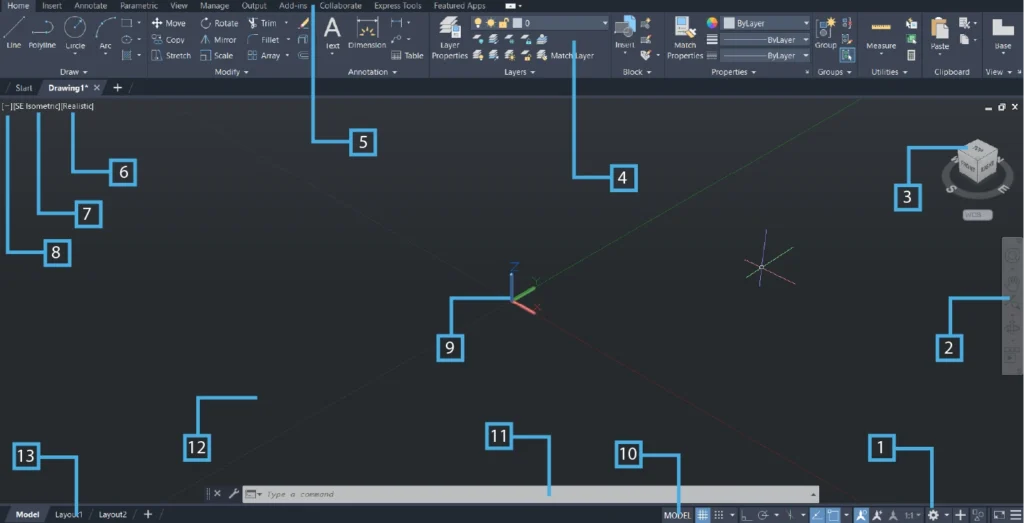
1. Workspace Tabs and Panel Controls (Bottom Right) on the Interface
- Function: Advanced workspace management system that enables seamless switching between specialized environments like Drafting & Annotation, 3D Modeling, Mechanical, Architecture, and custom workspaces. Includes panel configuration controls for customizing ribbon display, tool palette organization, and contextual menu settings. Essential for optimizing workflow efficiency and maintaining organized, task-specific interfaces tailored to different design disciplines.
- Shortcuts: Ctrl+0 (Clean Screen toggle), Ctrl+9 (Command Line toggle), F2 (Text Window), WSCURRENT command
2. Navigation Bar (3D) / Panel Area (Right Side) on the Interface
- Function: Comprehensive 3D navigation hub featuring advanced tools including SteeringWheels, ViewCube integration, Orbit controls, Pan/Zoom utilities, and Walk/Fly navigation modes. Houses critical properties panels, layer management controls, material assignment tools, and object manipulation utilities. Provides real-time access to drawing utilities and maintains full control over 3D model properties, lighting, and rendering settings.
- Shortcuts: F4 (3D Object Snap), Ctrl+1 (Properties Panel), Ctrl+2 (Design Center), Ctrl+3 (Tool Palettes), LA (Layer), NAVSWHEEL command
3. ViewCube on the Interface
- Function: Interactive 3D navigation control that provides intuitive model orientation and viewing angle management. Enables instant switching between standard orthographic views (Top, Front, Right, Isometric) and custom perspective angles. Features home view reset, view transition animations, and coordinate system orientation indicators. Critical for efficient 3D model inspection, design review, and spatial understanding of complex geometries.
- Shortcuts: F6 (Dynamic UCS), Ctrl+R (Refresh), 3DORBIT command, HOME (return to home view), NAVVCUBE command
4. Visual Style Controls on the Interface
- Function: Advanced visual representation manager offering multiple display modes including 2D Wireframe, 3D Wireframe, Hidden Line, Realistic, Conceptual, Shaded, Shaded with Edges, and Sketchy styles. Controls material display, lighting effects, shadow casting, and edge enhancement. Essential for design visualization, presentation preparation, and technical documentation requiring different levels of detail and visual clarity.
- Shortcuts: VSCURRENT command, SHADEMODE command, Alt+VV (Visual Styles menu), VISUALSTYLES command
5. Ribbon/Toolbar Area (Top) on the Interface
- Function: Primary command interface organized into contextual tabs (Home, Insert, Annotate, Parametric, View, Manage, Output, Express Tools). Contains comprehensive drawing tools (Line, Circle, Arc, Polyline), modification commands (Move, Copy, Rotate, Scale), annotation tools (Dimension, Text, Leaders), and specialized functions. Features dynamic panel expansion, tool tips, and customizable quick access toolbar for optimized workflow efficiency.
- Shortcuts:
- Drawing: L (Line), C (Circle), REC (Rectangle), PL (Polyline), ARC (Arc), EL (Ellipse)
- Modify: M (Move), CO (Copy), RO (Rotate), S (Scale), E (Erase), TR (Trim), EX (Extend), F (Fillet), CHA (Chamfer)
- Annotation: DIM (Dimension), T (Text), MT (Multiline Text), LE (Leader)
- Navigation: Ctrl+Tab (Switch between tabs), F12 (Dynamic Input), RIBBON command
6. Viewport Controls (Left Side) on the Interface
- Function: Advanced viewport management system controlling display configurations, view layouts, perspective/orthographic projection modes, and visual style overrides per viewport. Manages multiple viewport arrangements, controls model/paper space transitions, and provides viewport-specific display settings. Essential for creating professional technical drawings and coordinating multiple view orientations simultaneously.
- Shortcuts: VPORTS command, MVIEW command, PS (Paper Space), MS (Model Space), VPMAX command, VPMIN command
7. View Controls (Left Side) on the Interface
- Function: Precision navigation toolset featuring zoom extents, zoom window, zoom previous, pan, orbit (constrained/free), and view manager access. Includes preset view controls, named view management, and smooth transition animations. Critical for detailed design work, enabling users to navigate efficiently between overview and detail levels while maintaining design context and spatial awareness.
- Shortcuts:
- Z+E (Zoom Extents), Z+W (Zoom Window), Z+P (Zoom Previous), Z+A (Zoom All)
- PAN command, 3DO (3D Orbit), Middle Mouse Button (Pan/Zoom), VIEW command
8. Navigation Controls (Far Left) on the Interface
- Function: Extended navigation suite including advanced SteeringWheels, 3D mouse support, walk/fly navigation modes, camera path creation, and motion path animations. Features ShowMotion thumbnail navigation, view transitions, and immersive 3D exploration tools. Enhances complex design review processes and supports architectural walkthrough creation for presentation purposes.
- Shortcuts: NAVSWHEEL command, 3DWALK command, 3DFLY command, F8 (Ortho Mode), SHOWMOTION command
9. UCS Icon on Interface on the Interface
- Function: Dynamic User Coordinate System indicator displaying current X, Y, Z axes orientation with color-coded directional arrows (Red-X, Green-Y, Blue-Z). Shows coordinate system origin, provides visual confirmation of drawing plane orientation, and indicates when working in custom coordinate systems. Fundamental for maintaining spatial accuracy in 3D modeling and ensuring correct object placement and transformation operations.
- Shortcuts: UCS command, UCSICON command, Ctrl+Shift+U (UCS settings), UCSMAN command, PLAN command
10. Status Bar (Bottom) on the Interface
- Function: Comprehensive drawing environment monitor displaying real-time coordinates, model/paper space indicators, and toggleable drawing aids including Grid, Snap, Ortho, Polar Tracking, Object Snap, 3D Object Snap, Object Snap Tracking, Dynamic UCS, Dynamic Input, Line Weight display, Transparency, Selection Cycling, and Gizmo controls. Provides instant access to precision drawing tools and environmental settings.
- Shortcuts:
- F3 (Object Snap), F5 (Isoplane), F7 (Grid), F8 (Ortho), F9 (Snap)
- F10 (Polar Tracking), F11 (Object Snap Tracking), F12 (Dynamic Input)
- Ctrl+D (Dynamic UCS), Ctrl+E (Crosshairs/Isoplane), Ctrl+G (Grid), Ctrl+L (Ortho)
11. Command Line Area (Bottom) on the Interface
- Function: Interactive command interface serving as the primary communication hub between user and AutoCAD. Displays command prompts, options, error messages, and system feedback. Supports command history navigation, dynamic input preview, and transparent command execution. Essential for power users requiring rapid command execution and precise parameter input without menu navigation interruption.
- Shortcuts:
- F2 (Command History/Text Window), Esc (Cancel command)
- Up/Down arrows (Command history), Tab (Command completion)
- Transparent commands: ‘ZOOM, ‘PAN (use during other commands), COMMANDLINE command
12. Model/Layout Tabs (Bottom Left) on the Interface
- Function: Critical workspace switcher enabling seamless transition between Model Space (unlimited 3D design environment) and Paper Space layouts (scaled 2D plotting/printing sheets). Supports multiple layout creation, viewport management, title block integration, and multi-scale drawing coordination. Fundamental for professional documentation workflows and construction drawing preparation.
- Shortcuts:
- Ctrl+Page Up/Down (Switch between tabs)
- LAYOUT command, LAYOUTWIZARD command, PAGESETUP command
- TILEMODE system variable (0=Paper Space, 1=Model Space)
13. Application Menu / Quick Access (Bottom Left) on the Interface
- Function: Centralized file management and application control center providing access to New, Open, Save, Save As, Export, Print, and recent file operations. Includes Quick Access Toolbar customization for frequently used commands, application options, help system access, and workspace switching. Streamlines project management and provides rapid access to essential file operations without workflow disruption.
- Shortcuts:
- File Operations: Ctrl+N (New), Ctrl+O (Open), Ctrl+S (Save), Ctrl+Shift+S (Save As)
- Ctrl+P (Print), Ctrl+Z (Undo), Ctrl+Y (Redo), Ctrl+C (Copy), Ctrl+V (Paste)
- Alt+F4 (Exit AutoCAD), Ctrl+Q (Quick Select), QNEW command, OPEN command
Additional Universal Shortcuts:
- Function Keys: F1 (Help), F3 (Osnap), F5 (Isoplane), F6 (Dynamic UCS), F7 (Grid), F8 (Ortho), F9 (Snap), F10 (Polar), F11 (Otrack), F12 (DYN)
- View Navigation: Mouse wheel (Zoom), Middle mouse drag (Pan), Shift+Middle mouse (3D Orbit)
- Selection: Ctrl+A (Select All), Ctrl+Shift+A (Select All in Current Space)
Each interface element is strategically positioned to support efficient CAD operations with both mouse interaction and keyboard shortcuts, accommodating various user preferences and workflow optimization requirements.