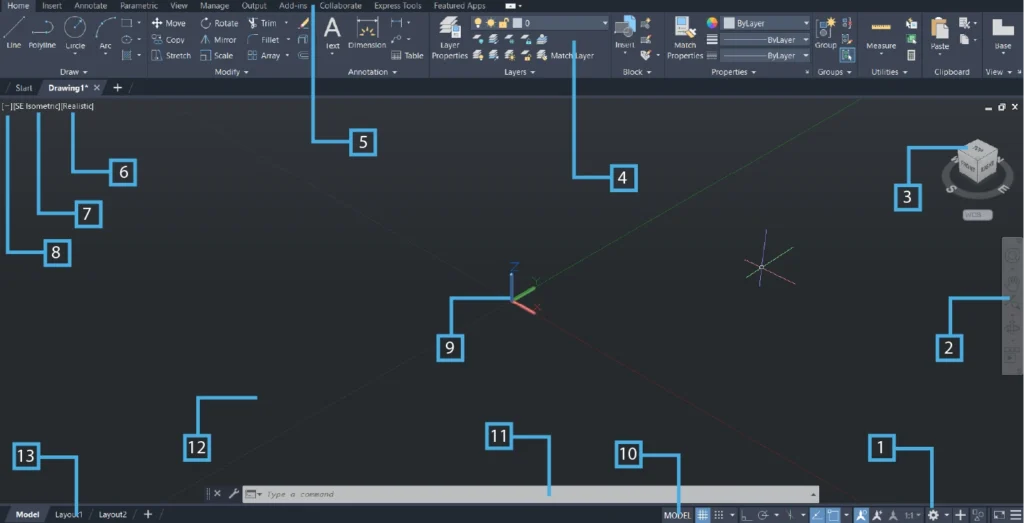

When starting 3D modeling, using the correct environment and settings in AutoCAD is crucial for success. Template files provide tremendous convenience for this purpose. If you’re working with imperial measurement units (inch/feet), you should choose the acad3D.dwt file, while for metric measurement units, the acadiso3D.dwt file is the preferred option. These 3D templates automatically open the 3D Modeling workspace, prepare necessary tabs and panels, position UCS and isometric preset views, and pre configure Visual Styles and navigation tools to streamline your transition into 3D drafting. (If you cannot locate these files on your system, you can download them by clicking on the file names shown here)
This approach allows users to focus solely on modeling without dealing with complex settings, preventing common issues such as incorrect units, missing panels, or faulty coordinate selection. In essence, these AutoCAD 3D templates follow the “open, skip setup, start modeling” philosophy, which accelerates the 3D learning process and ensures a smooth, error free 3D design experience. By utilizing these pre configured templates, both beginners and experienced users can maximize their productivity and maintain consistency in their 3D modeling workflow.
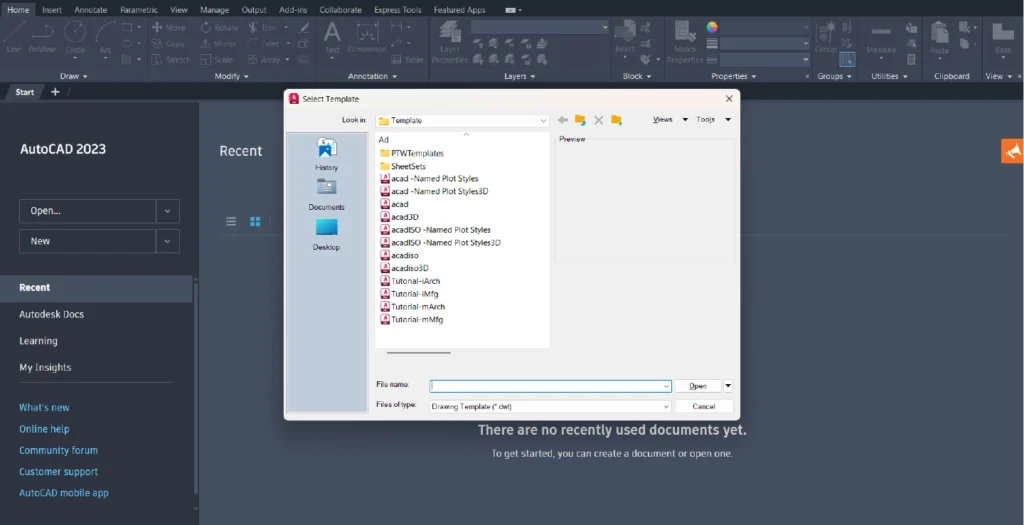
Now I will show you how to find and open these files on your computer.
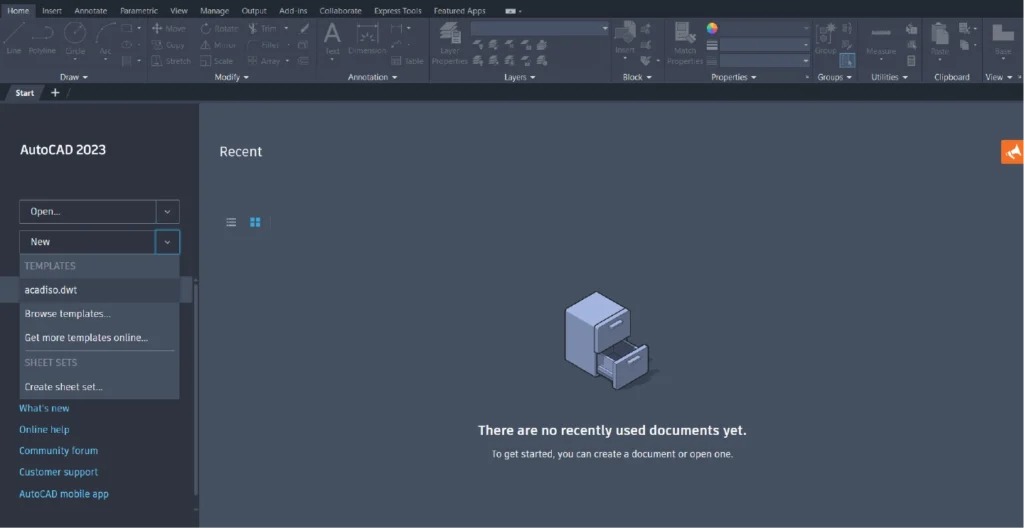
You can also select from additional templates by clicking the Browse Templates section.
When transitioning from 2D drawings to 3D models in AutoCAD, the acadiso3D.dwt template file provides tremendous convenience and efficiency for users. This pre configured template establishes the necessary environment and settings for 3D modeling, allowing users to begin drafting immediately while avoiding potential errors and time consuming manual configurations. The primary advantages and features provided by this AutoCAD 3D template include:
1. Automatic 3D Environment Initialization
The acadiso3D.dwt file automatically activates the 3D Modeling workspace upon opening, ensuring that all essential tabs and panels such as Home, Solid, Surface, Mesh, Render, and View are readily available. This comprehensive workspace setup eliminates the need for users to manually locate and enable these critical tools, providing immediate access to solid modeling commands, surface creation tools, mesh editing functions, and visualization controls. Additionally, the template activates specialized 3D toolbars and ribbon panels that are specifically designed for three dimensional design workflows.
2. Optimized Coordinate Systems and Isometric Views
This template incorporates ISO measurement units and isometric viewing configurations with precise preset arrangements. The coordinate system is properly calibrated for metric measurements, ensuring accuracy in dimensional modeling and preventing unit conversion errors. The User Coordinate System (UCS) is positioned with appropriate axis orientations, while isometric preset views including Northeast (NE), Northwest (NW), Southeast (SE), and Southwest (SW) perspectives are pre configured for optimal viewing angles. These predefined viewpoints enable users to visualize their models from standard architectural and engineering perspectives, facilitating better spatial understanding and design accuracy.
3. Advanced Visual Styles and Navigation Configuration
The acadiso3D.dwt template comes with pre configured Visual Styles including 2D Wireframe, 3D Wireframe, Hidden, Realistic, Conceptual, and Shaded rendering modes. These visual representation options allow users to switch between different display modes depending on their modeling needs and presentation requirements. Furthermore, essential 3D navigation tools such as the ViewCube, Steering Wheel, 3D Orbit controls, and Walk/Fly navigation are automatically enabled and positioned for optimal accessibility, eliminating the need for manual tool activation and configuration.
4. Enhanced Productivity and Error Prevention
By utilizing this comprehensive template, users can bypass the time consuming process of manual environment setup, which can often lead to configuration errors and workflow interruptions. The template automatically prevents common issues such as incorrect UCS orientation, improper unit selection, missing workspace panels, inadequate visual styles, and disabled navigation tools. This systematic approach ensures that users can focus entirely on the creative and technical aspects of 3D modeling rather than troubleshooting environmental settings.
5. Professional Standards and Consistency
The template adheres to international ISO standards for technical drawing and CAD practices, ensuring that all created models maintain professional quality and industry compatibility. This standardization is particularly valuable for collaborative projects, file sharing, and professional presentations where consistency and accuracy are paramount.
In summary, the acadiso3D.dwt template file serves as a comprehensive foundation for 3D drafting in AutoCAD, embodying the philosophy of “open, skip setup, start modeling.” This approach significantly accelerates the transition from 2D to 3D design workflows, reduces learning curves for new users, minimizes configuration errors, and maximizes productive modeling time. For professionals, students, and enthusiasts venturing into three-dimensional design, this template represents an essential starting point that combines efficiency, accuracy, and industry best practices.